
For years, building Logic Apps meant a visual designer, a JSON file behind it and a VS Code extension holding the whole local loop together. That works well for people. It works a lot less well for coding agents. At Nordic Integration Summit (NIS) 2026, Wagner Silveira, Principal Product Manager for Core AI | Logic Apps at Microsoft, presented Evolving the Logic Apps Developer Experience. He covered three workstreams that change how integration code gets written, tested and connected: the Logic Apps Standard SDK, a new Logic Apps local CLI and Connector Namespace.
On paper, these are three separate developer features. Look at them together and they read like the toolkit for agent-assisted integration development: typed code an agent can write, a deterministic command surface an agent can drive, and managed connectivity an agent can call as tools. They are useful well beyond AI, too. Here is what each one is, the use cases (with examples) and how they fit together, with slides from the session.
This is my second write-up from NIS 2026. The first covers what is new with Logic Apps Automation, including pricing and the free grant. For the original launch of the SDK and the rest of the June announcements, see my Microsoft Build 2026 recap.
A note on timing: much of what was shown at NIS is not released yet. The SDK and Connector Namespace are in public preview today, but several of the capabilities below (Service Provider connectors in the SDK, the local CLI, managed identity in Connector Namespace) are roadmap items with October and November 2026 targets, and the CLI has no public documentation yet. I have marked the status of each one. Keep an eye on the Azure Integration Services blog for the actual release announcements, and I will update this post as they land.
TL;DR
- Logic Apps Standard SDK (
Microsoft.Azure.Workflows.Sdk): write workflows in C# with a fluent API. It is a new front door, not a new engine: same runtime, connectors, run history and monitoring. Service Provider connectors and C# expressions arrive in the October 2026 preview refresh. - Logic Apps local CLI: one
az logicappextension, 19 command groups and 64 commands covering the full workflow lifecycle, locally and in the cloud. Its stated goal is “adding determinism to local AI-assisted coding.” An MVP is due in October 2026. - Connector Namespace (preview): the Logic Apps connector catalog without the workflow engine. Call connectors from Functions, Container Apps, App Service or your own code in C#, Node.js or Python, or expose them to agents as managed MCP servers. GA is planned for November 2026.
- The rule of thumb: pick the SDK when orchestration and operational visibility matter, Connector Namespace when connectivity is the only requirement, and the CLI to drive either from any editor, pipeline or coding agent.
Why the Logic Apps Developer Experience Needed to Change
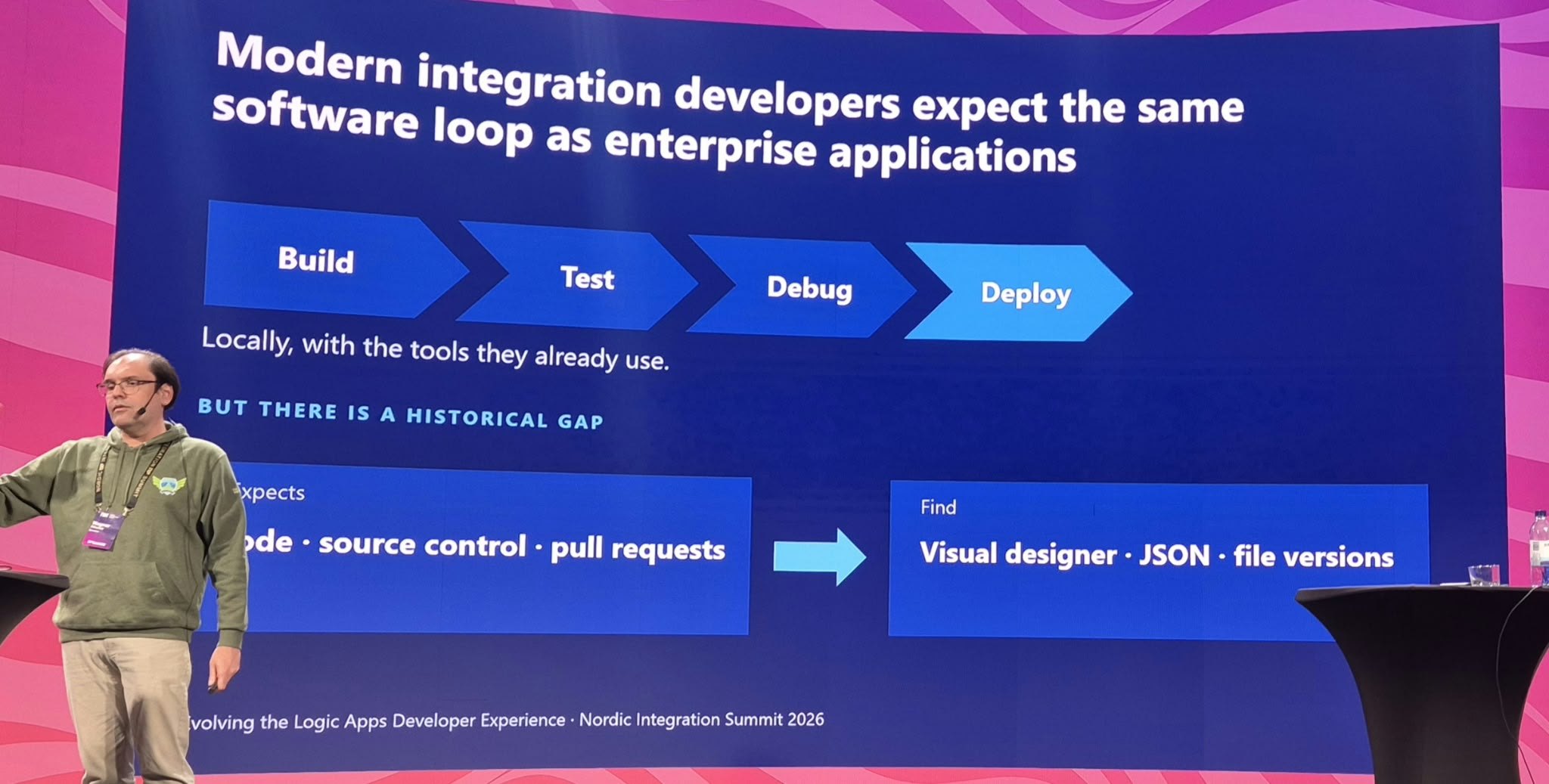
Wagner opened with a point every integration team will recognise. Integration developers expect the same software loop as application developers: build, test, debug and deploy, locally, with the tools they already use. They expect code, source control and pull requests. What they found in Logic Apps was a visual designer, JSON and file versions.
That gap gets wider with coding agents. An agent works best when it can write typed code, run a command, read a deterministic result and try again. A canvas gives it nothing to work with, and hand-written workflow JSON gives it plenty of ways to be confidently wrong.
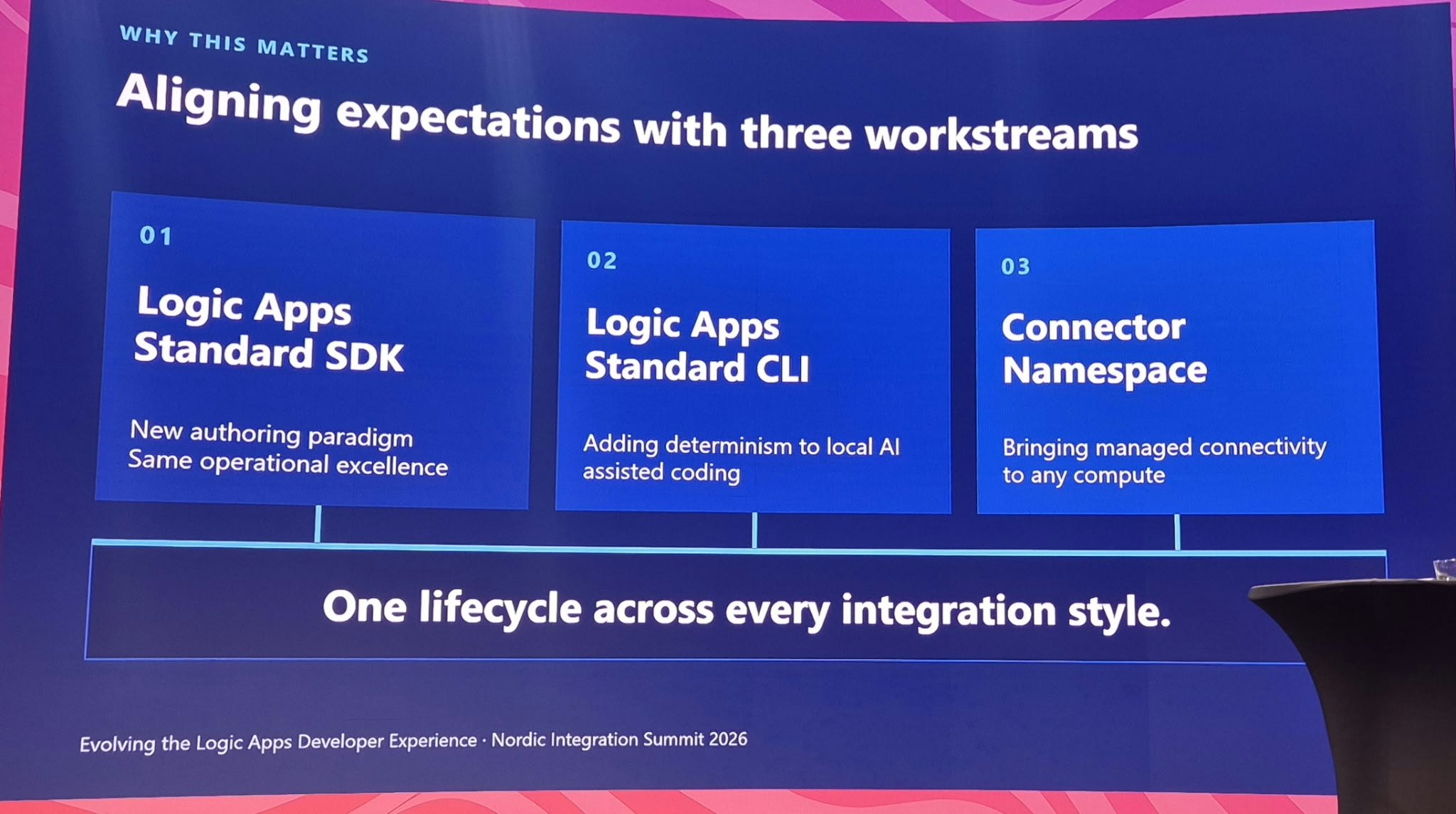
Microsoft’s answer is three workstreams under one message: one lifecycle across every integration style.
- Logic Apps Standard SDK: a new authoring paradigm with the same operational excellence.
- Logic Apps Standard CLI: adding determinism to local AI-assisted coding.
- Connector Namespace: bringing managed connectivity to any compute.
1. Logic Apps Standard SDK: Workflows as Code
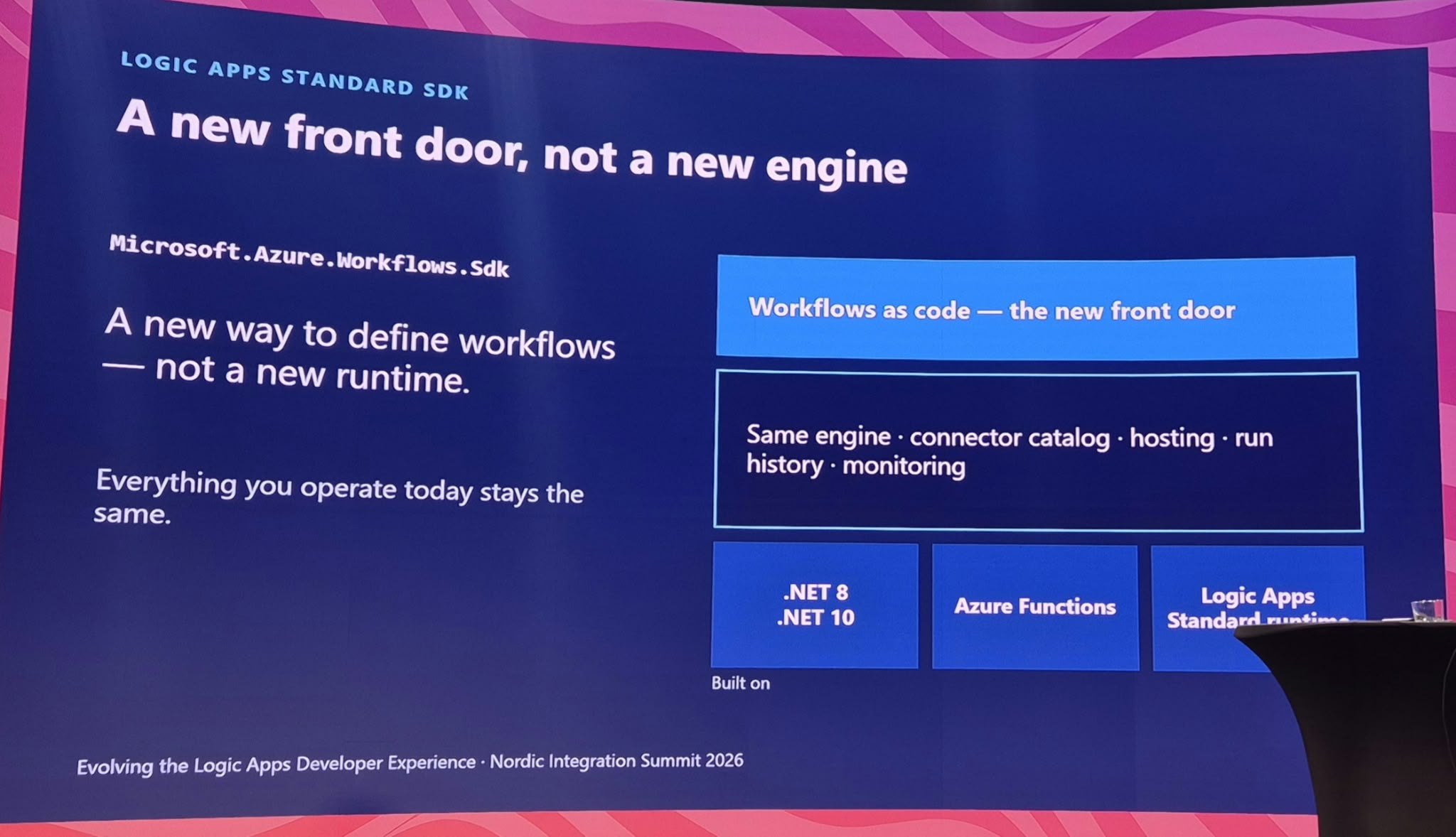
The Logic Apps Standard SDK (Microsoft.Azure.Workflows.Sdk on NuGet) lets you define workflows in C#. The key message from the session: it is a new way to define workflows, not a new runtime. The same engine, connector catalog, hosting, run history and monitoring sit underneath, built on .NET 8 and .NET 10, Azure Functions and the Logic Apps Standard runtime. Everything you operate today stays the same.
The fluent API mirrors the shape of the workflow, so a C# file reads like the designer does:
var trigger = WorkflowTriggers.BuiltIn.CreateHttpTrigger();

trigger
    .Then(validateOrder)
    .Then(processLineItems)
    .Then(sendResponse);
Control flow (Condition, ForEach, Switch, Until, Scope and Terminate) composes in the same model.
What is new: Service Provider connectors and C# expressions
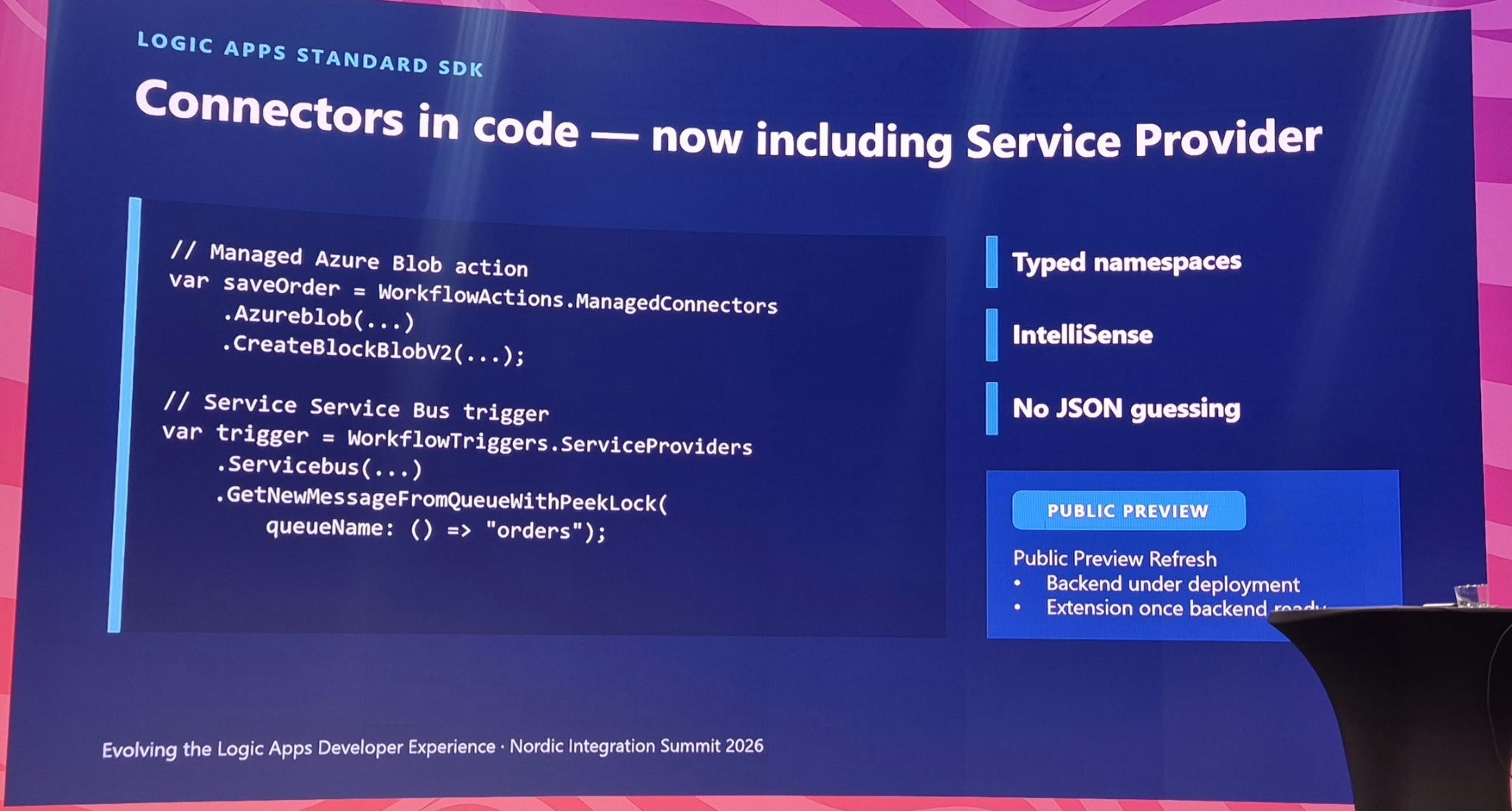
When the SDK launched at Build, it only supported Azure-hosted managed connectors. The public preview refresh shown at NIS adds Service Provider (built-in) connectors, which is where most enterprise integration actually lives: Service Bus, Event Hubs, SQL, Blob and so on. Both connector types come through typed namespaces, with IntelliSense and, in the slide’s words, “no JSON guessing”:
// Managed Azure Blob action
var saveOrder = WorkflowActions.ManagedConnectors
    .Azureblob(...)
    .CreateBlockBlobV2(...);

// Service Bus trigger (Service Provider)
var trigger = WorkflowTriggers.ServiceProviders
    .Servicebus(...)
    .GetNewMessageFromQueueWithPeekLock(
        queueName: () => "orders");
Two more things land on the same surface:
- Custom code with WorkflowContext. A
CustomCodestep receives the workflow context, reads the trigger and earlier results, and returns typed values. For example,await context.GetTriggerResults()followed byGetBody<PeekLockQueueMessagesV2OutputItem[]>(). - Expressions in C# syntax. You write
() => getCurrentWeatherAction.Body.ToString()and the SDK compiles it to a Logic Apps runtime expression such as@{body('GetWeather').ToString()}. No more learning the workflow definition language just to concatenate two strings.
Why it matters for agent-assisted development
Coding agents are much better at writing typed, imperative code than at producing declarative JSON that only fails at runtime. With the SDK, the C# compiler becomes the first guardrail. A misspelled action name, a wrong parameter type or a missing connection reference becomes a build error the agent can read and fix, instead of a broken deployment you discover later.
Use cases with examples
- Agent-authored workflows. Ask GitHub Copilot or Claude Code to “create a stateful workflow that receives an order over HTTP, validates it, stores it in Blob Storage and puts it on the
ordersService Bus queue.” The agent writes C#, the compiler checks it, and you review a readable diff instead of 400 lines of JSON. - Pull-request governance. Workflow changes show up as meaningful C# diffs in Azure DevOps or GitHub. Reviewers can see that someone changed a retry policy or removed a Terminate step, which is close to impossible to spot in a designer-generated JSON diff.
- Reusable building blocks. Because a workflow is now C#, a platform team can package common patterns as shared code: a standard error-handling scope, a dead-letter routine or a logging convention. Every team then composes these instead of copying JSON snippets between projects.
- .NET teams moving into integration. Application developers who were put off by the designer can build with IntelliSense, refactoring and the debugger they already know, while operations keep the same run history and monitoring.
- Migrations. For BizTalk orchestrations or legacy ESB flows, an AI-assisted migration that produces typed C# workflows is far easier to validate than one that generates raw workflow definitions. If you are on that journey, see how an AI agent can migrate BizTalk Server to Azure and the BizTalk migration tool Microsoft shipped.
When to use it: Your team is code-first, you want workflow definitions to live in the same repository and review process as application code, or you are generating workflows with coding agents. If your team is happy in the designer, nothing forces you to switch: the runtime is the same.
Status: public preview. Today’s limitations from the Microsoft Learn documentation include no dynamic schemas, custom code via callback methods only, and no managed identity authentication yet. Service Provider connectors and C# expressions arrive with the October 2026 refresh. Code and samples are on GitHub (Azure/logicapps-sdk).
2. Logic Apps Local CLI: Determinism for AI-Assisted Coding
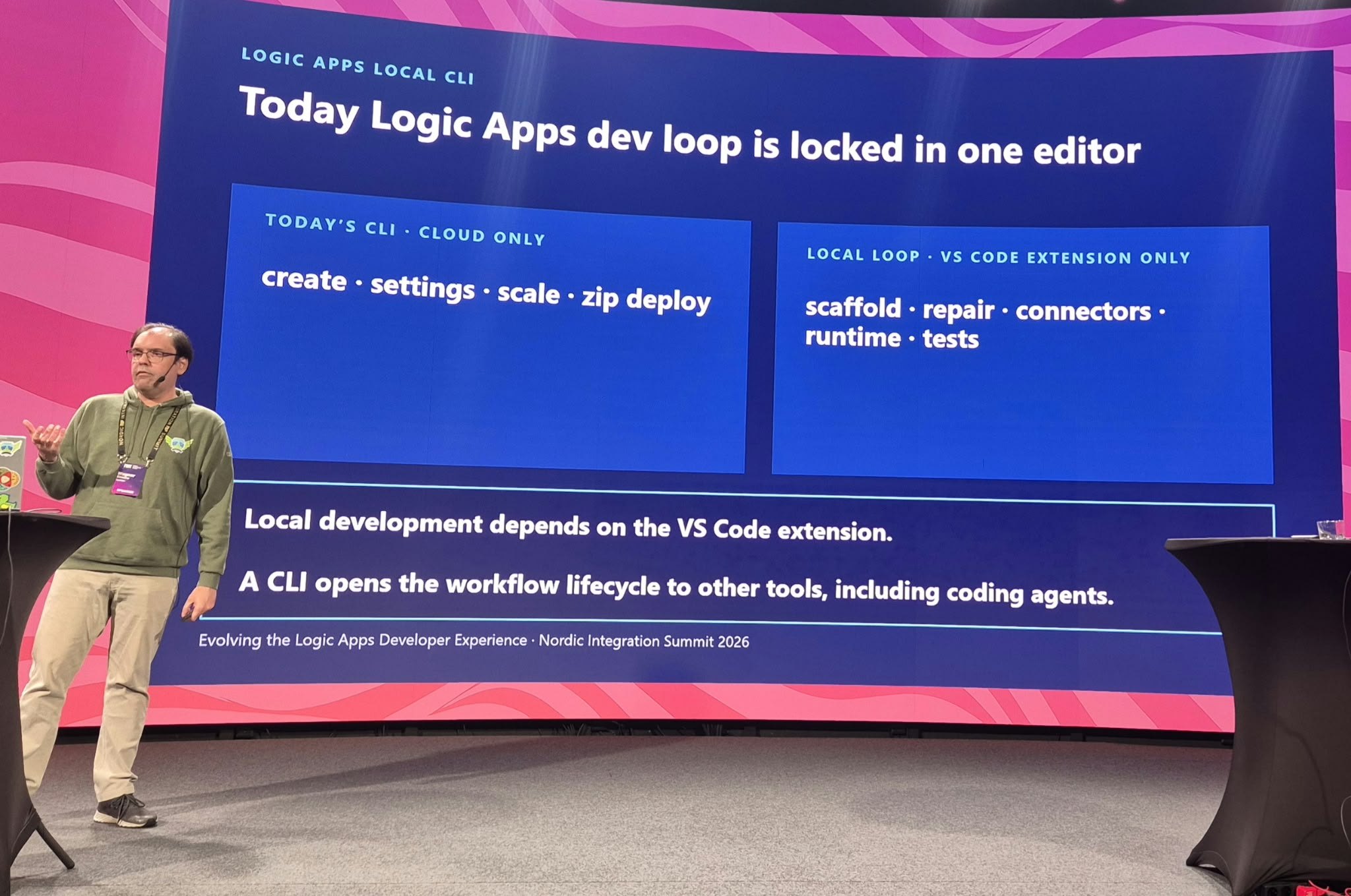
This was the part of the session I found most interesting. Today the Azure CLI for Logic Apps is cloud only (create, settings, scale and zip deploy). Everything local, such as scaffolding, repair, connectors, runtime and tests, lives inside the VS Code extension. If you are not in VS Code, or you are not a human clicking buttons, you are out of luck.
As the slide puts it: a CLI opens the workflow lifecycle to other tools, including coding agents.
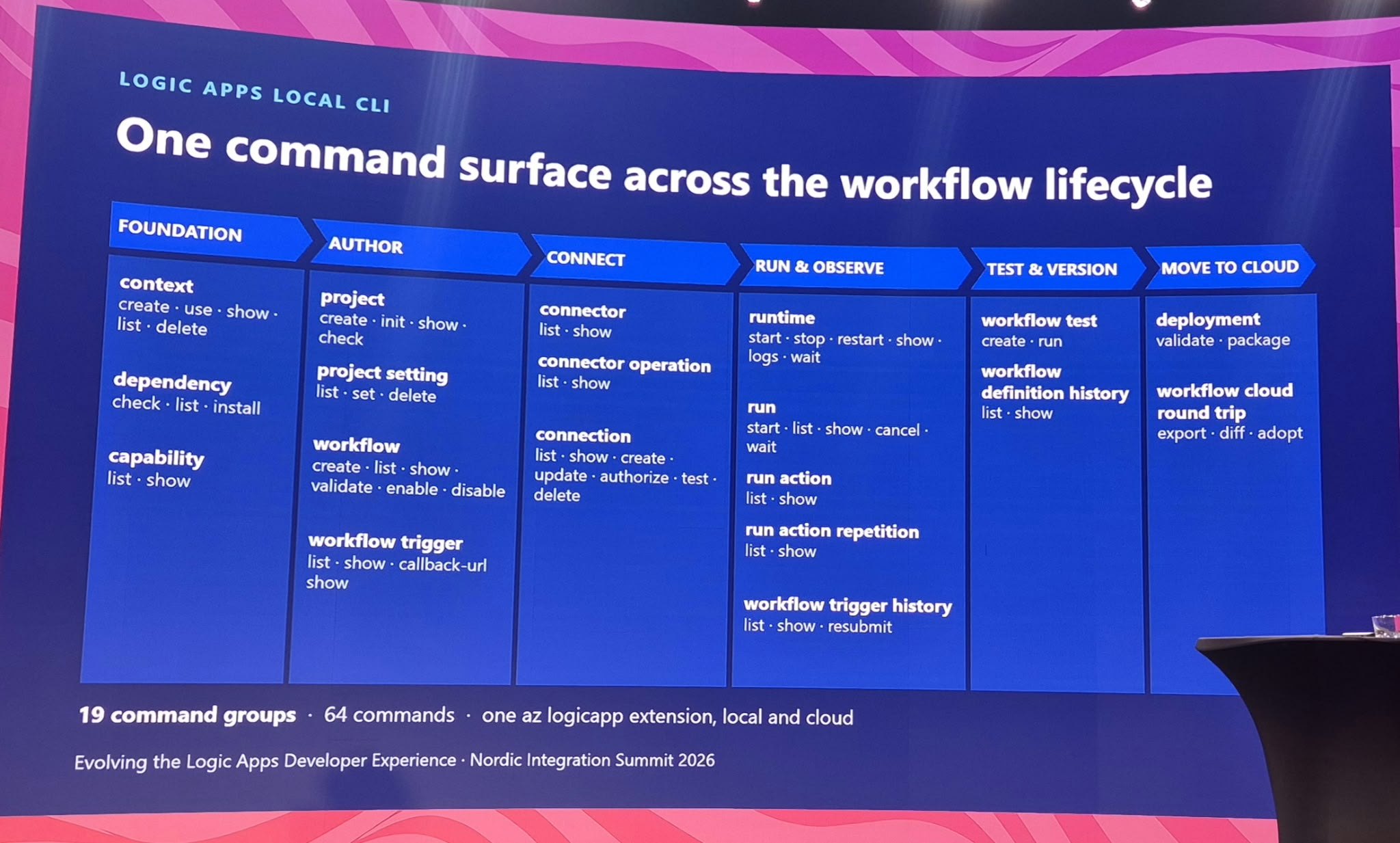
The new CLI covers the whole lifecycle in six stages:
| Stage | Command groups (from the slide) |
|---|---|
| Foundation | context, dependency, capability |
| Author | project, project setting, workflow, workflow trigger |
| Connect | connector, connector operation, connection (including authorize and test) |
| Run & observe | runtime (start, stop, logs), run, run action, run action repetition, workflow trigger history (including resubmit) |
| Test & version | workflow test, workflow definition history |
| Move to cloud | deployment (validate, package), workflow cloud round trip (export, diff, adopt) |
The inner loop: repeat until the run is green
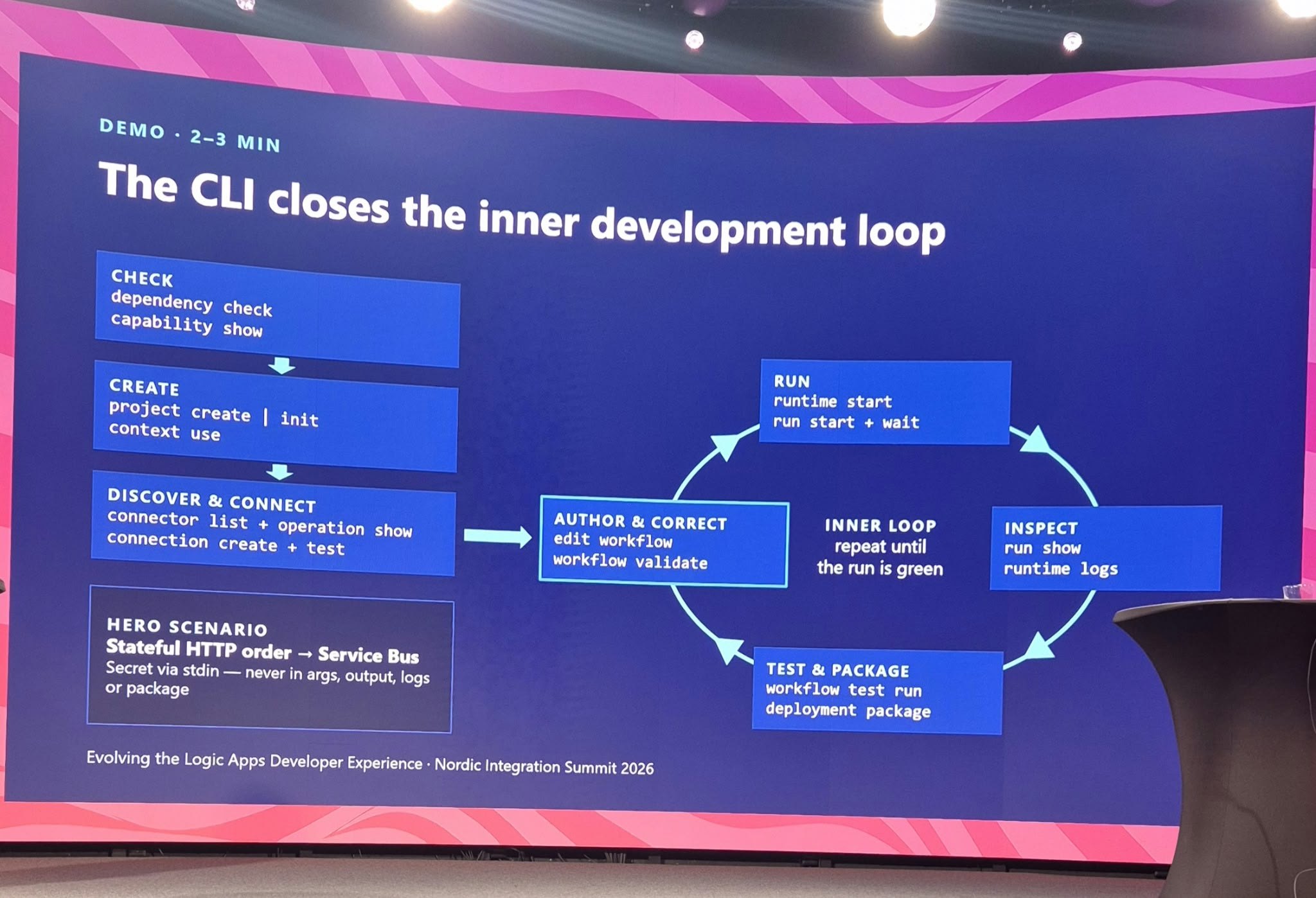
The demo slide describes exactly how a coding agent works. Check dependencies and capabilities, create a project, discover and connect connectors, then loop: author and correct (edit and validate the workflow), run (start the runtime, start a run and wait), inspect (run details and runtime logs), test and package. Repeat until the run is green.
The demo scenario was a stateful HTTP order workflow writing to Service Bus, with one detail that matters a lot for agents: secrets go in via stdin, never in arguments, output, logs or the package. When an agent drives your terminal, everything it types ends up in a transcript. Designing the CLI so that secrets never appear there is the right default.
To make that concrete, here is the loop as an agent would run it. These are the command groups from the slides. Treat them as illustrative, because exact flags may change before release.
# Check and create
az logicapp dependency check
az logicapp project create          # or: project init
az logicapp context use --name orders-local

# Discover and connect
az logicapp connector list
az logicapp connector operation show
az logicapp connection create        # secret piped via stdin
az logicapp connection test

# Inner loop: repeat until the run is green
az logicapp workflow validate
az logicapp runtime start
az logicapp run start                # + wait
az logicapp run show
az logicapp runtime logs

# Test and package
az logicapp workflow test run
az logicapp deployment package
Named contexts: local, dev and prod with the same commands
The CLI introduces named contexts, similar to kubectl contexts. One context points at a local project path (orders-local), another at a cloud dev Logic App (orders-dev: subscription, resource group, Logic App and slot), another at production (orders-prod). Switch with az logicapp context use --name orders-dev, or override one command with --context orders-prod.
A command resolves its target in a fixed order: explicit coordinates first, then --context, then the active context, then the inferred local project. Some commands are local only (project, runtime, workflow test, deployment package), some work against both local and cloud (workflow, run and trigger history, connectors), and the existing cloud resource commands such as az logicapp create keep working unchanged. One detail I like: capability discovery reports real per-context differences, with no false parity. An agent can ask what a target supports instead of assuming that local and cloud behave the same.
Use cases with examples
- Coding agents closing the loop on their own. GitHub Copilot CLI, Claude Code or any other terminal agent can scaffold a project, author a workflow, run it locally, read the run output and fix what failed, without a human pressing F5 in VS Code.
- CI quality gates. On every pull request, a pipeline can run
workflow validate,workflow test runanddeployment validateheadlessly. That gives you the same checks a developer runs locally, with no extension required. - Any editor. Developers on Visual Studio, Rider, Neovim or a plain terminal get the full local loop. The VS Code extension becomes one client of the tooling rather than the only one.
- Support and operations. After an outage, use
workflow trigger history listandresubmitto replay failed orders against the dev or prod context, andrun showto look at a specific failure, all from a script. - Catching drift. Someone hot-fixed a workflow in the portal?
workflow cloud round tripwithexport,diffandadoptlets you compare the cloud version with source control and bring the change back into the repository, instead of losing it at the next deployment.
When to use it: Any time the developer is not a person sitting in VS Code: a coding agent, a pipeline, a script or a colleague with a different editor.
Status: announced at NIS 2026. A CLI extension MVP (scaffolding, connector management and runtime management) is planned for October 2026, with a broader command surface in November 2026. I could not find public documentation yet, so expect details to change.
3. Connector Namespace: Managed Connectivity for Any Compute and AI Agents
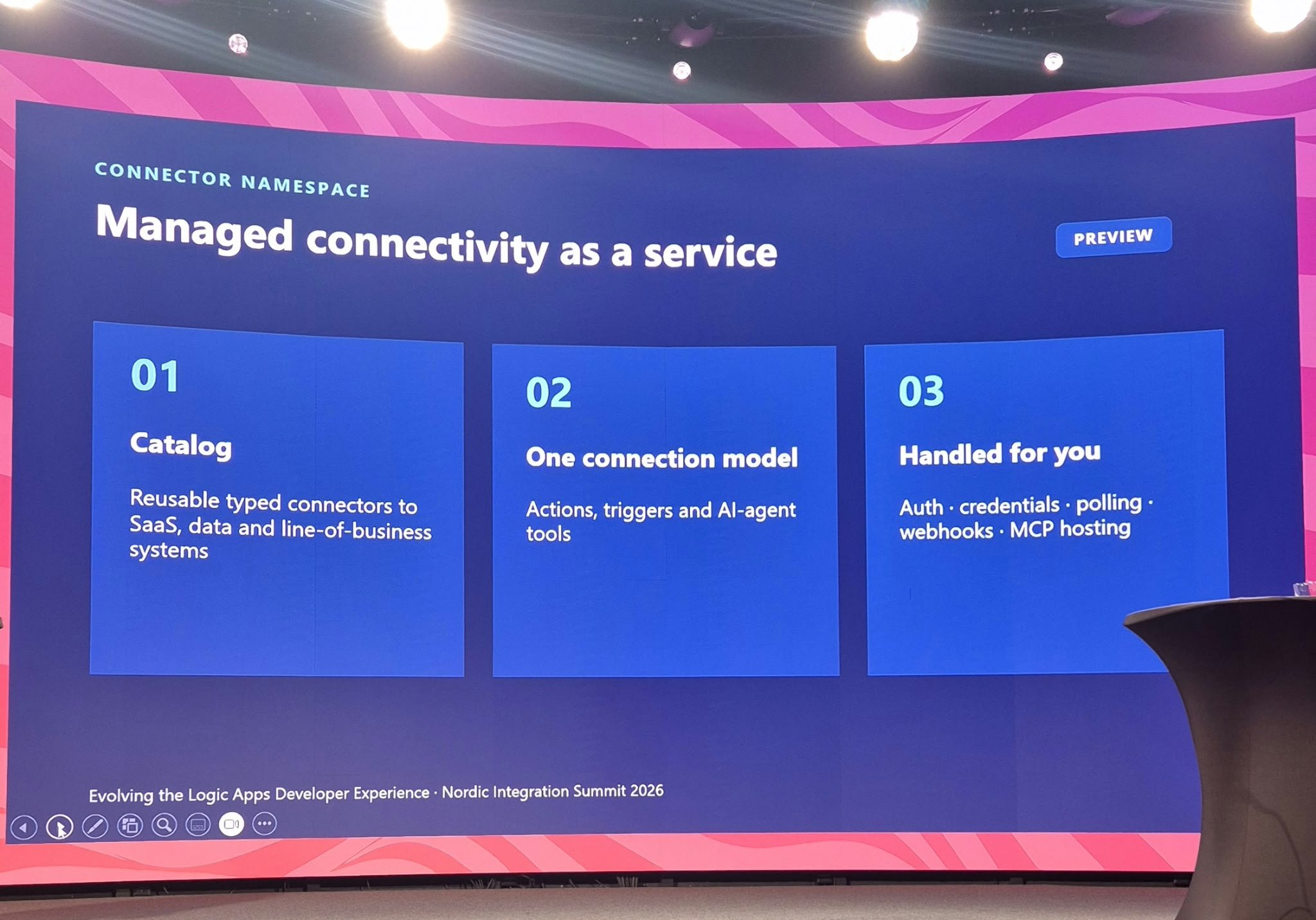
Every team that has built an Azure Function talking to SharePoint, Salesforce or Outlook knows the integration tax: OAuth flows, token refresh, pagination, retries, webhook subscriptions and polling state. Connector Namespace (public preview since Build 2026) removes that tax. It is an Azure resource that hosts Logic Apps connectors and handles the plumbing for you, so any compute can use them.
The session summed it up in three points:
- Catalog: reusable, typed connectors to SaaS, data and line-of-business systems.
- One connection model: actions, triggers and AI-agent tools share the same authenticated connections. One connection can serve several apps.
- Handled for you: auth, credentials, polling, webhooks and MCP hosting.
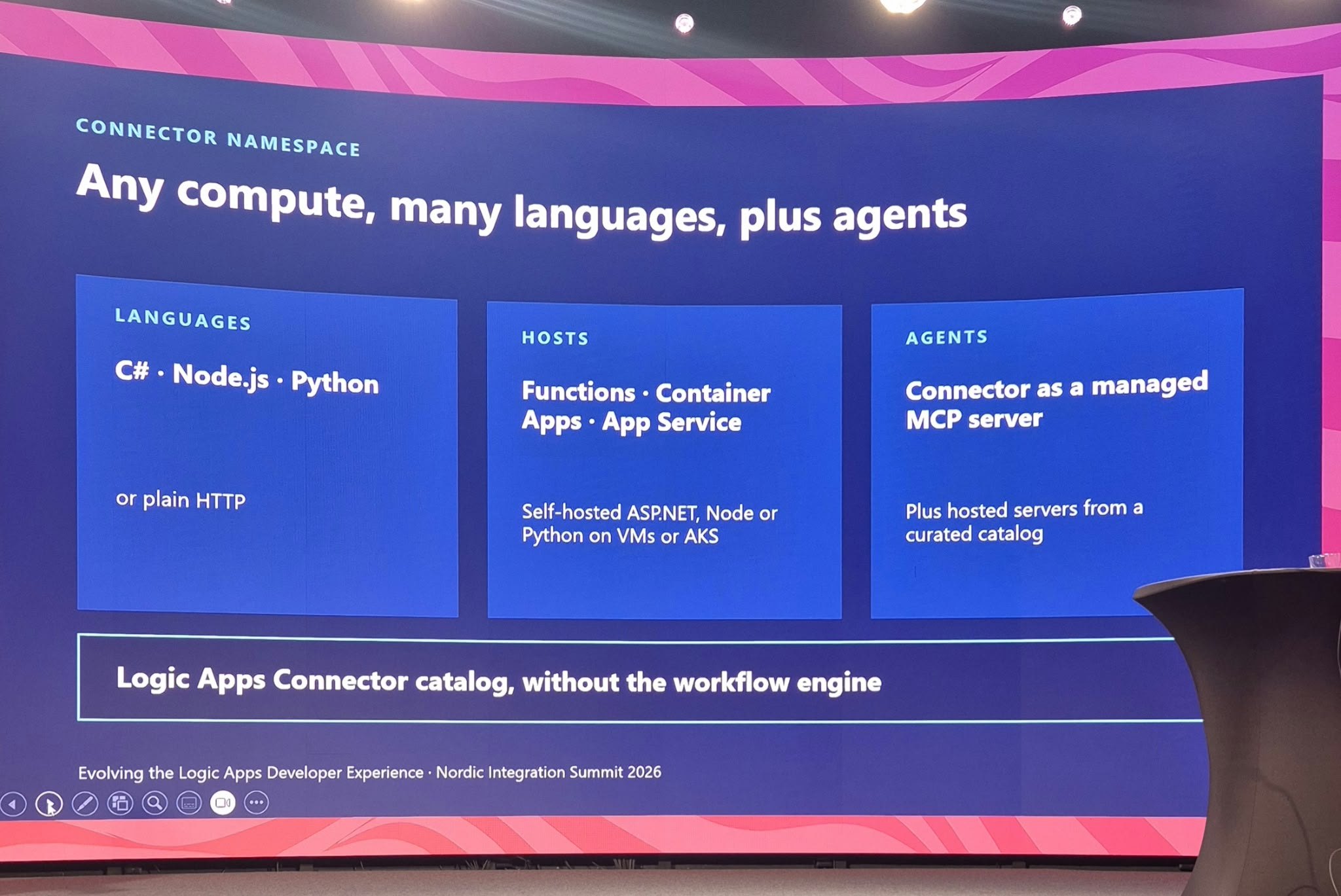
You call connectors through typed SDKs (Azure.Connectors.Sdk for C#, @azure/connectors for Node.js, azure-connectors for Python) or plain HTTP. They run from Azure Functions, Container Apps and App Service, or from self-hosted ASP.NET, Node.js and Python services on VMs or AKS. For agents, any connector can be exposed as a managed MCP server, and you can also run hosted MCP servers from a curated catalog (Playwright and Azure SQL at the time of writing). Everything is managed from the portal at connectors.azure.com.
The agent-assisted angle: skills for coding agents
This one is easy to miss. The Azure/Connectors GitHub repository ships agent skills for GitHub Copilot CLI and Claude Code. They teach a coding agent how to manage namespaces, connections, triggers that post to HTTP(S) callbacks and MCP server configuration, plus an edition specifically for wiring services such as Office 365, Teams, SharePoint, GitHub and Azure Blob into Azure Container Apps. There is also an Azure CLI extension (az connector-namespace).
# GitHub Copilot CLI
/plugin marketplace add Azure/Connectors
/plugin install azure-connectornamespace@Azure-Connectors

# Claude Code
claude plugin add Azure/Connectors
So Connector Namespace supports AI in two ways. Agents use it at runtime, calling connectors as MCP tools, and coding agents use it at build time to set up the connectivity your app needs.
Use cases with examples
- Document processing in Functions. An Azure Function picks up a new file in a SharePoint library through a Connector Namespace trigger, extracts data and writes the result back. No Graph SDK, no token cache and no subscription renewal code.
- Event-driven microservices. A Container App receives Salesforce lead events through a trigger that posts to its HTTP callback. The namespace manages the polling or webhook registration, and several services can share the same connection.
- Grounding AI applications. A Python service calls connector actions to enrich LLM output with business data, for example the customer’s open cases or latest orders, without writing an API client for each system.
- Tools for agents through MCP. Turn the Outlook, Teams or SharePoint connector into a managed MCP server and give it to GitHub Copilot, a Foundry agent or Azure SRE Agent. Microsoft has a good example of Azure SRE Agent using a hosted SQL MCP server from Connector Namespace to query a database during an investigation.
- Agent-assisted setup. With the skill installed, ask your coding agent to “create a connector namespace, an Office 365 connection and a trigger that posts new emails to my Container App.” The agent does the wiring, and credentials stay in the namespace instead of in your app settings.
When to use it: You need fast, secure access to an end system from code you already run, and you do not need a workflow engine around it.
Status: public preview, no SLA. Pricing is consumption based (per action, per trigger, per MCP tool call and data retention), and billing for hosted MCP servers is disabled during preview. Authentication is currently OAuth, API key and basic. The roadmap slide shows managed identity, custom connectors and OBO in October 2026, GA with polling triggers and observability in November 2026, and networking support after GA. See the Connector Namespace documentation for current regions and limits.
How the Three Fit Together
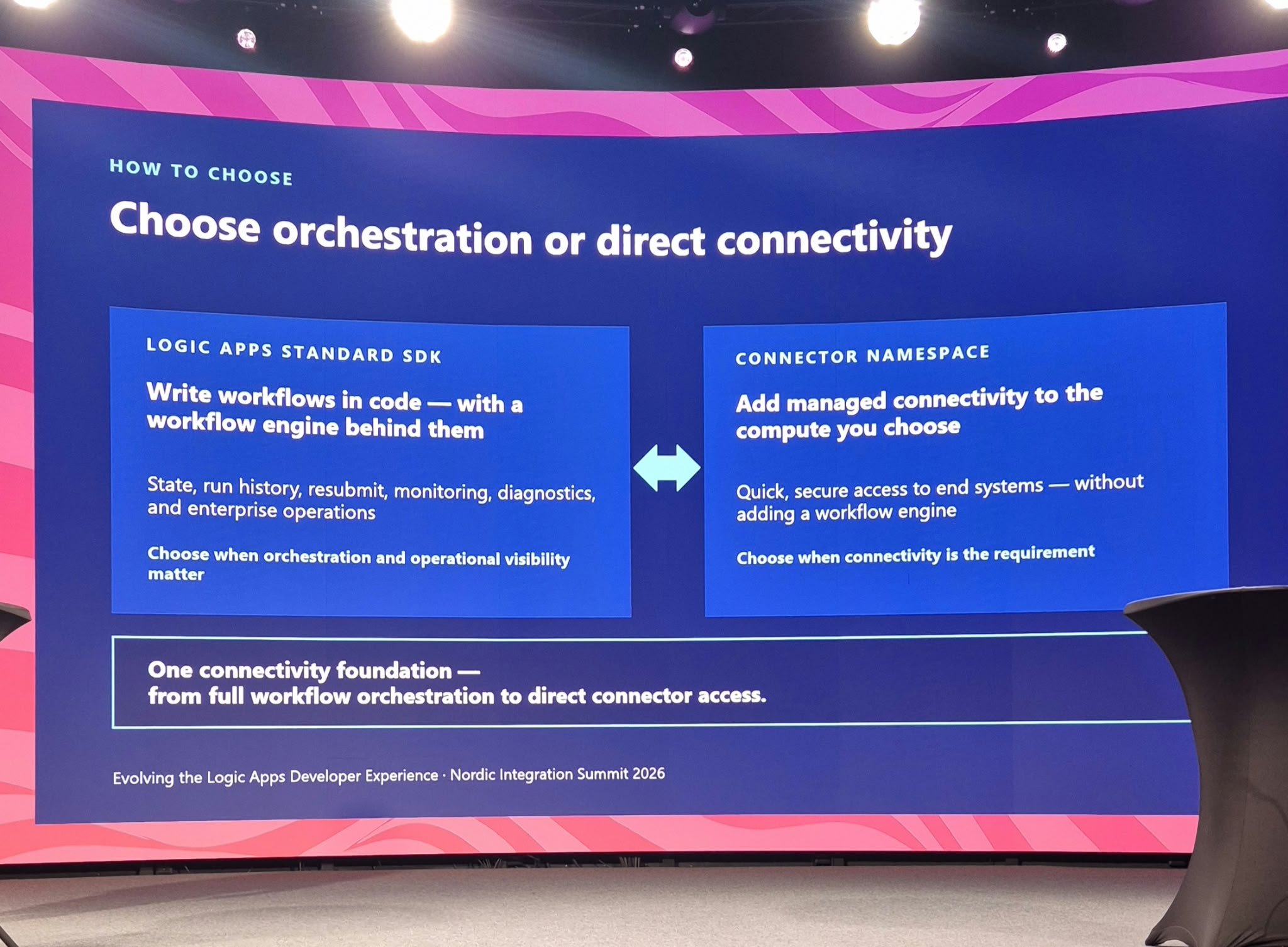
The SDK and Connector Namespace are not competitors. They are two ends of the same connectivity foundation. Here is how I would decide:
| If you need… | Use | Example |
|---|---|---|
| State, run history, resubmit, long-running steps, approvals | Logic Apps Standard SDK (or the designer) | Order-to-cash flow with retries and a human approval |
| One API call or one event from code you already run | Connector Namespace | Function that posts to Teams when a build fails |
| Tools for an AI agent | Connector Namespace (managed MCP) | Copilot or a Foundry agent searching SharePoint and sending Outlook mail |
| An agent, pipeline or non-VS Code editor to build and test workflows | Logic Apps local CLI | PR pipeline running workflow validate and workflow test |
| Agent-assisted end to end | All three | Agent writes SDK code, verifies it with the CLI, and wires connections with the Connector Namespace skill |
Roadmap: Where Each Workstream Stands
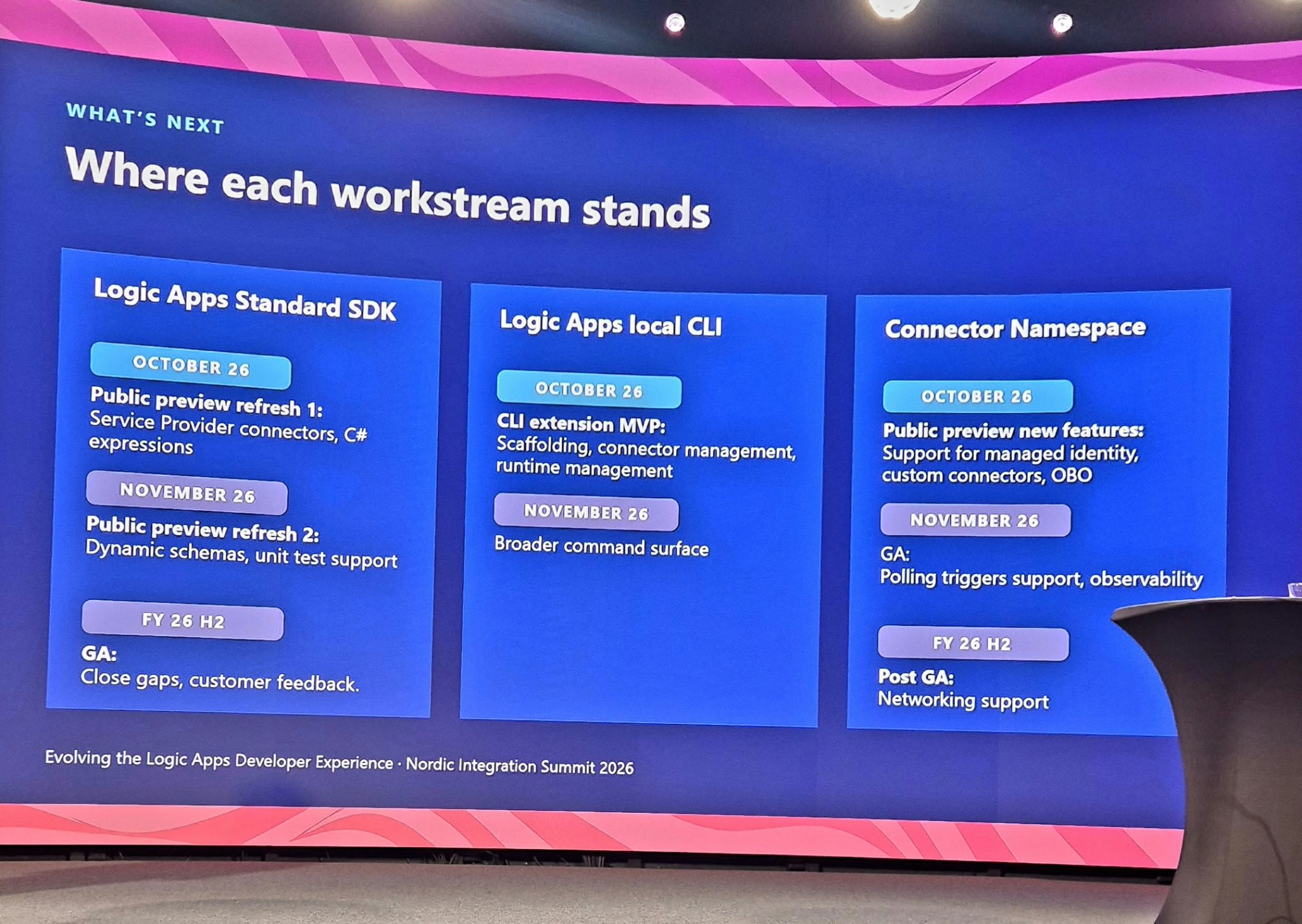
| Workstream | October 2026 | November 2026 | Later |
|---|---|---|---|
| Logic Apps Standard SDK | Public preview refresh 1: Service Provider connectors, C# expressions | Public preview refresh 2: dynamic schemas, unit test support | GA: close gaps, customer feedback |
| Logic Apps local CLI | CLI extension MVP: scaffolding, connector management, runtime management | Broader command surface | – |
| Connector Namespace | New preview features: managed identity, custom connectors, OBO | GA: polling triggers support, observability | Post-GA: networking support |
Roadmap dates are as presented on stage and may change.
My Take as an Integration Architect
- The CLI is the sleeper hit. The SDK gets the headlines, but the CLI is what makes agent-assisted development reliable. An agent without a deterministic way to validate, run and inspect is just guessing faster. Context-aware commands, honest capability discovery and stdin-only secrets show that this was designed with agents in mind from day one.
- Code-first changes your governance, not your runtime. Since the engine stays the same, operations teams lose nothing. What changes is where review happens: workflow logic now goes through pull requests. Agree on branch policies, code owners and test expectations for workflow code before the first agent-generated PR arrives.
- Connector Namespace blurs the line between integration and application code. That is powerful, and it needs governance. Decide who can create connections, which connectors are allowed and how MCP servers are approved, or you will end up with connection sprawl instead of API-client sprawl. Pair it with API Management and API Center where agents need a governed front door.
- Do not stop learning the runtime. C# expressions still compile to workflow definition language, and production run history still shows runtime JSON. Your team needs to read both, especially when debugging something an agent wrote.
- Preview means preview. The SDK and Connector Namespace are in public preview, and the CLI is about to arrive as an MVP. They are great for proofs of concept, internal tooling and building skills now. Check SLAs, regions and identity support before you commit production workloads.
Frequently Asked Questions
Is the Logic Apps Standard SDK a new runtime?
No. The SDK is a new way to define workflows in C#. Workflows run on the same Logic Apps Standard runtime, with the same connectors, hosting, run history and monitoring as workflows built in the designer.
Do I need the Logic Apps Standard SDK to use the new CLI?
Based on the session, no. The CLI works on the Logic Apps project and its workflows (scaffold, validate, run, test, package and deploy), so it is useful whether the workflows come from the designer, the SDK or a coding agent. Confirm this against the documentation once the CLI is released.
What is the difference between Connector Namespace and Logic Apps connectors?
Connector Namespace gives you the Logic Apps connector catalog without the workflow engine. You call connectors directly from Functions, Container Apps, App Service or your own code, or you expose them to AI agents as MCP servers. If you need orchestration, state and run history, use Logic Apps itself.
Can I use these features in production today?
Not yet with an SLA. The Logic Apps Standard SDK and Connector Namespace are in public preview, and the local CLI is planned as an MVP for October 2026. Connector Namespace GA is targeted for November 2026. Use them for proofs of concept and internal tooling for now.
Quick Reference
| Capability | Status | Where to start |
|---|---|---|
| Logic Apps Standard SDK | Public preview | Microsoft Learn · GitHub · Announcement |
| SDK: Service Provider connectors, C# expressions | Preview refresh, October 2026 | Watch the SDK repository |
| Logic Apps local CLI | MVP planned for October 2026 | No public docs yet |
| Connector Namespace | Public preview, GA planned for November 2026 | Microsoft Learn · Announcement · Portal |
| Hosted MCP servers in Connector Namespace | Preview | Microsoft Learn |
| Connector Namespace agent skills | Available | GitHub (Azure/Connectors) |
My suggestion: pick one small, real integration this month, such as an HTTP-to-Service Bus order flow, and build it with the SDK while letting a coding agent do the first draft. When the CLI MVP lands, let the agent run the loop too. If you were at NIS and saw the session, I would love to hear which of the three you think will change your team’s work the most.