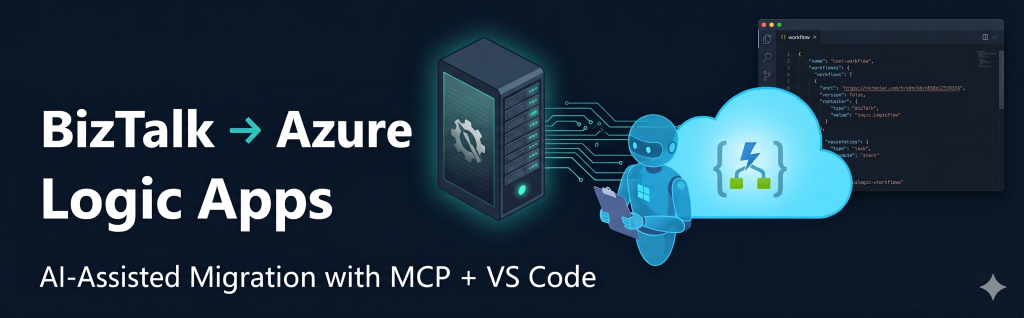

B izTalk Server has been the backbone of enterprise integration for over 25 years — but its end-of-life clock is ticking. With Microsoft now officially pointing customers toward Azure Logic Apps, the question is no longer if you migrate, but how fast you can do it without losing your mind. Enter: a fully AI-driven migration agent, powered by the BizTalkMigrationStarter MCP server, wired up through VS Code AI Toolkit and Microsoft Foundry. This is not vaporware — you can set it up this afternoon.
Why the Clock Is Ticking
In February 2026, Microsoft formally announced the BizTalk Server product lifecycle update. BizTalk Server 2016 is already out of mainstream support. BizTalk Server 2020 survives until April 2028, with paid extended support available until April 2030 — but that is the last chapter. Microsoft is directing all future investment into Azure Integration Services: Logic Apps Standard, API Management, Service Bus, and Event Grid.
“Azure Logic Apps, part of Azure Integration Services — which includes API Management, Service Bus, and Event Grid — delivers the comprehensive integration platform for the next decade of enterprise connectivity.”
Microsoft BizTalk Server Lifecycle Update, February 2026
📌 BizTalk Server Product Lifecycle Update — Microsoft Community Hub
The Architecture Shift: What You Are Actually Moving
Before we build the agent, understand what it is converting. The core architectural pivot looks like this:
| BizTalk Server Concept | Azure Integration Services Equivalent |
|---|---|
| MessageBox Database (pub/sub hub) | Azure Service Bus (managed messaging backbone) |
| Orchestrations (.odx) | Logic Apps Standard Workflows (.json) |
| Maps (.btm / XSLT + Functoids) | Logic Apps Mapping Language files (.lml) |
| Pipelines (.btp) | Logic Apps Workflow Actions |
| Receive / Send Ports + Adapters | Built-in Connectors / Service Providers |
| Visual Studio MSI deployment | VS Code + Bicep / ARM / GitHub Actions |
| On-premises only | Cloud, Hybrid (Arc-enabled), or Air-gapped |
The biggest mental shift: the MessageBox disappears. Azure Service Bus takes its place as the publish-subscribe backbone, with native CorrelationId support, peek-lock delivery, and elastic scale — all as a managed PaaS service with zero SQL Server infrastructure to maintain.
The BizTalkMigrationStarter Toolkit — What Is Inside
Harold Campos published BizTalkMigrationStarter — an open-source toolkit that automates conversion of BizTalk artifacts to Azure Logic Apps Standard. The standout feature: a built-in MCP (Model Context Protocol) server exposing 25 AI tools, which lets any MCP-compatible AI agent (Claude, GitHub Copilot in VS Code) drive the migration interactively.
📌 haroldcampos/BizTalkMigrationStarter — GitHub
📌 BizTalk Migration Tool — Microsoft Community Hub
| Component | What It Does |
|---|---|
| ODXtoWFMigrator | Orchestrations (.odx) → Logic Apps workflow JSON. Requires orchestration + bindings file from BizTalk Admin. |
| BTMtoLMLMigrator | Maps (.btm) → Logic Apps Mapping Language (.lml). Handles all major functoid types. |
| Pipeline Migrator | Pipelines (.btp) → Logic Apps workflow actions. Detects PassThru, XMLReceive, XMLTransmit patterns. |
| MCP Server | Exposes 25 AI tools for analysis, conversion, validation, and deployment package generation to any MCP client. |
Part 1: Build the Migration Agent in VS Code
This is where it gets interesting. Instead of running CLI commands manually, you wire the BizTalkMigrationStarter MCP server to VS Code’s AI Toolkit extension and create a purpose-built migration agent using Agent Builder. The agent understands your migration intent, invokes the right tools, and iterates on the output — all within a conversational interface inside VS Code.
Prerequisites
- .NET 8 SDK installed
- VS Code (latest stable)
- Node.js (for npx-based MCP servers)
- A Microsoft Foundry project (free to create — see Part 2)
Step 1 — Install the AI Toolkit Extension
Open VS Code → Extensions (Ctrl+Shift+X) → search “AI Toolkit” → Install. Once installed, the AI Toolkit icon appears in the Activity Bar. Click it — this is your home base for everything that follows. The extension brings Microsoft Foundry integration and GitHub Copilot agent skills out of the box. No extra dependencies to wrangle.
📌 Build Your AI Agent in 5 Minutes with AI Toolkit — Microsoft Community Hub
Step 2 — Clone and Build the Migration Toolkit
git clone https://github.com/haroldcampos/BizTalkMigrationStarter.git
cd BizTalkMigrationStarter
dotnet build
Verify the build succeeds before wiring up the MCP server. The solution contains four projects — all must compile cleanly.
Step 3 — Register the MCP Server in VS Code
Open the Command Palette (Ctrl+Shift+P) → MCP: Add Server. Choose Command (stdio) as the transport type. Configure the server entry:
{
  "biztalk-migration": {
    "type": "stdio",
    "command": "dotnet",
    "args": [
      "run",
      "--project",
      "C:/path/to/BizTalkMigrationStarter/BizTalkMigrationMCP/BizTalkMigrationMCP.csproj"
    ]
  }
}
VS Code writes this to .vscode/mcp.json in your workspace. Once saved, the server starts automatically when the workspace opens. You should see all 25 BizTalk migration tools appear in the Tool Catalog inside AI Toolkit.
Step 4 — Create the Migration Agent in Agent Builder
In the AI Toolkit sidebar, navigate to Build → Create Agent. Agent Builder opens. Configure it as follows:
- Model: Select a model from the dropdown. GPT-4.1 (via Microsoft Foundry) or GitHub Models work well. For local/offline use, Phi-4 via Ollama is a practical option.
- Instructions: Paste the system prompt below (see the callout box).
- Tools: Click + MCP Server → select biztalk-migration from the list → enable all 25 tools, or scope to the ones relevant to your migration phase.
- Tool Approval: Set read-only analysis tools to Auto. Set file-writing and package-generation tools to Manual — so you approve before anything lands on disk.
Suggested Agent System Prompt
You are a BizTalk-to-Azure migration specialist. Your job is to help the user migrate BizTalk Server artifacts (orchestrations, maps, pipelines) to Azure Logic Apps Standard using the available migration tools.
When given a path to BizTalk artifacts:
1. Always start with a readiness assessment and gap analysis before attempting any conversion.
2. Present the complexity report to the user and ask for confirmation before proceeding.
3. Convert orchestrations one at a time unless the user requests batch processing.
4. Flag any unsupported shapes or adapters and explain the manual remediation needed.
5. Validate all generated workflows before producing the deployment package.
6. Target Cloud deployment unless the user specifies OnPremises or Hybrid.
Be concise. Ask one clarifying question at a time. Never overwrite existing files without explicit user confirmation.
Step 5 — (Optional) Improve Your Agent Instructions with Foundry Prompt Optimizer
Not happy with the system prompt? Click the Improve button in Agent Builder. The Foundry Prompt Optimizer analyses your instructions and rewrites them to be clearer and more structured. It takes seconds and often catches ambiguity you would not notice until the agent misbehaves at 11pm on a deadline.
Step 6 — Test the Agent in the Playground
Switch to the Playground tab in AI Toolkit. Open Agent Inspector (the debug panel) — it shows you every tool invocation, input parameters, and raw output in real time. Then send your first prompt:
Scan the BizTalk artifacts in C:/BizTalk/MyApp and give me a migration
readiness report. Tell me which orchestrations are simple, which are complex,
and flag any adapters or shapes that will need manual attention.
Watch Agent Inspector. You will see the agent invoke the ODX Analysis and Gap Analysis tools, retrieve results, and compose a structured report — all transparently. Every tool call requires your approval unless you set it to Auto.
Part 2: Deploy the Agent to Microsoft Foundry
Running the agent locally is great for development. For team-wide use — or to give your integration team a shared, always-on migration assistant — deploy it to Microsoft Foundry as a Hosted Agent.
Step 7 — Create a Microsoft Foundry Project
Navigate to ai.azure.com (Azure AI Foundry portal). Create a new project — this gives you a managed workspace for model deployments, agents, tools, and evaluations. Back in VS Code, connect AI Toolkit to your Foundry project: AI Toolkit sidebar → Your Foundry Project → sign in with your Azure account → select your project.
📌 Foundry Toolkit for VS Code — Official Docs
Step 8 — Deploy a Model to Foundry
In AI Toolkit → Model Catalog → browse available models. For this migration agent, GPT-4.1 or GPT-4.1 mini deployed through Foundry gives you the right balance of reasoning capability and cost. Click Deploy to Microsoft Foundry — this provisions a managed endpoint in your Azure subscription. Note the deployment name; you will reference it in the next step.
Step 9 — Register the BizTalk MCP Server as a Foundry Tool
In AI Toolkit → Your Foundry Project → Tools. Click + MCP Server. For a team deployment, the MCP server needs to be reachable over the network — host the BizTalkMigrationMCP server on an Azure Container App or Azure App Service and expose it via streamable HTTP transport. Then register it:
{
  "biztalk-migration-remote": {
    "type": "http",
    "url": "https://your-mcp-host.azurecontainerapps.io/mcp"
  }
}
For local team use on a shared developer machine, the stdio transport (Step 3) also works fine — each developer clones the toolkit and registers the server locally.
Step 10 — Deploy the Agent as a Hosted Agent
In Agent Builder, once your model and MCP tools are configured and tested: click Deploy to Microsoft Foundry. This publishes the agent (instructions + model + tool bindings) as a Hosted Agent in your Foundry project. Your team can now access it from:
- The Hosted Agent Playground in AI Toolkit (VS Code)
- The Azure AI Foundry portal at ai.azure.com
- Any application via the Azure AI Agents SDK (REST or Python/C# client)
📌 Build Agents and Prompts in AI Toolkit — VS Code Docs
Part 3: Run the End-to-End Migration
With the agent live, here is the actual migration workflow — what you say to the agent, and what it does behind the scenes.
Step 11 — Export BizTalk Artifacts
Before the agent can do anything, you need the source artifacts. In BizTalk Server Administration Console:
- Navigate to your BizTalk Application → Export → Bindings. Save as
MyApp.BindingInfo.xml. This contains all transport configurations, adapter settings, receive/send port mappings. - From your Visual Studio BizTalk project, collect: all
.odxorchestration files,.btmmap files, and.btppipeline files.
💡 Multiple orchestrations can live in one binding file — the toolkit handles this automatically. Export everything to a single folder, e.g. C:/BizTalk/MyApp/Artifacts.
Step 12 — Readiness Assessment
Agent prompt: "Analyse all orchestrations in C:/BizTalk/MyApp/Artifacts
and produce a migration readiness report with complexity scoring."
The agent invokes ODX Analysis + Gap Analysis tools and returns an HTML/Markdown report covering: supported vs unsupported shapes, adapter compatibility (most are handled via connector-registry.json), self-recursion patterns, callable workflow candidates, and a complexity score per orchestration.
Step 13 — Convert Orchestrations
Agent prompt: "Convert OrderProcessing.odx using the bindings file at
C:/BizTalk/MyApp/Artifacts/MyApp.BindingInfo.xml. Target: Cloud."
The ODXtoWFMigrator maps every BizTalk shape to its Logic Apps equivalent. For any unsupported shape, it inserts a Compose action with a comment — nothing is silently dropped. The BizTalk shape → Logic Apps action mapping:
| BizTalk Shape | Logic Apps Equivalent |
|---|---|
| Receive Shape | Trigger (HTTP, Service Bus, etc.) |
| Send Shape | Connector Action (HTTP, Service Bus Send) |
| Decide Shape | Condition / Switch action |
| Parallel Actions | Parallel Branch |
| Loop Shape | Until / For Each |
| Scope + Compensation | Scope with Run After error handling |
| Call Orchestration | Child Workflow (HTTP Request trigger) |
| Self-Recursion | Auto-converted to Loop — no manual rework |
Step 14 — Convert Maps and Pipelines
Agent prompt: "Convert all .btm maps in C:/BizTalk/MyApp/Artifacts/Maps
to Logic Apps Mapping Language. Then convert all pipelines."
The BTMtoLMLMigrator handles functoid translation (string, math, logical, date/time). The Pipeline Migrator detects default patterns (PassThru, XMLReceive, XMLTransmit) and generates equivalent Logic Apps workflow steps, preserving pipeline stage semantics.
Step 15 — Validate and Package
Agent prompt: "Validate all generated workflows and produce a complete
Logic Apps Standard deployment package for MyApp."
The agent invokes the Validation tool (catches deployment issues before they reach Azure) and then Package Generation, which produces a complete deployable artifact including connector configurations extracted from the original bindings file. The output is a Logic Apps Standard package ready for VS Code deployment, Bicep, or GitHub Actions CI/CD.
Migration Strategy: Go Wave by Wave
Microsoft strongly recommends an incremental wave-based migration over a “big bang” cutover, especially for large BizTalk estates. Here is the practical phasing:
- Wave 1 — PoC: One low-complexity, non-critical orchestration. Run the full agent pipeline end to end. Validate in a dev Logic Apps Standard instance.
- Wave 2 — Pilot: A complete business process. Introduce Service Bus as the messaging backbone replacing MessageBox pub/sub. Establish your monitoring baseline in Application Insights.
- Wave 3 — Scale: Batch-convert remaining orchestrations. Refine
connector-registry.jsonfor any custom adapters. Establish parity testing between BizTalk and Logic Apps outputs. - Wave 4 — Decommission: Retire BizTalk infrastructure once all workloads are live, validated, and operating in Azure for a defined stabilisation period.
📌 Migration Approaches — Microsoft Learn
📌 Why Move from BizTalk to Azure Logic Apps — Microsoft Learn
What the Agent Cannot Do Automatically
The agent automates the heavy lifting — but these areas still need human judgment:
| BizTalk Feature | Manual Remediation Path |
|---|---|
| Custom pipeline components | Rewrite as Azure Functions; wire via custom connector |
| BAM (Business Activity Monitoring) | Redesign with Application Insights + custom tracking actions |
| BRE (Business Rules Engine) policies | Reimplement in Logic Apps Rules Engine or Azure Functions |
| EDI / AS2 schemas | Logic Apps Standard has native EDI — needs manual configuration and partner agreements |
| Promoted properties / property schemas | Replace with Service Bus message properties; correlation logic needs review per scenario |
| SSO (Enterprise Single Sign-On) | Replace with Azure Key Vault + Managed Identity |
Official Reference Links
- BizTalkMigrationStarter — GitHub
- BizTalk Migration Tool — Microsoft Community Hub
- BizTalk Server Lifecycle Update — Microsoft Community Hub
- Why Move from BizTalk to Azure Logic Apps — Microsoft Learn
- BizTalk Migration Approaches — Microsoft Learn
- Agent Builder — VS Code Docs
- Foundry Toolkit for VS Code — VS Code Docs
- MCP Developer Guide — VS Code Extension API
- Build Your AI Agent in 5 Minutes — Microsoft Community Hub
Closing Thoughts
The combination of BizTalkMigrationStarter’s MCP server, VS Code AI Toolkit’s Agent Builder, and Microsoft Foundry’s hosted agent infrastructure is a genuinely new kind of migration experience. You are not running a one-shot CLI script and hoping the output compiles. You are having a conversation with an agent that understands your BizTalk estate, explains what it is doing, flags what it cannot handle, and produces deployment-ready artifacts — iteratively, with you in the loop at each stage.
The toolkit is open-source, actively maintained, and Microsoft has already referenced it in official lifecycle communications. BizTalk’s sunset is confirmed. The migration path is clearer than it has ever been. There is no reason to wait.
Have you tried the toolkit? Building your migration agent right now? Drop your questions or experience in the comments — or reach out directly if you need a hand architecting your BizTalk modernisation on Azure.